
Did You Know?
Save time. Work smarter
Save time. Work smarter






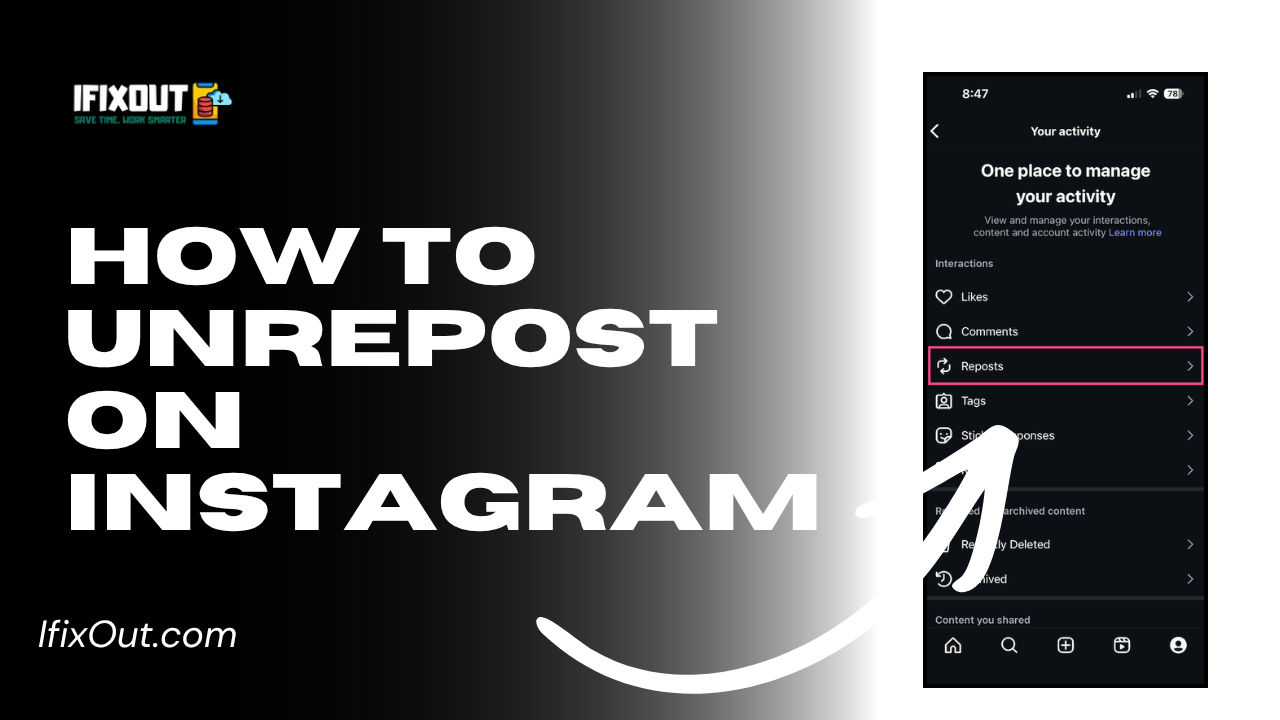
Have you ever reposted something on Instagram and then instantly regretted it? I’ve been there. Whether it was the wrong post, a duplicate share, or just a change of mind, figuring out how to unrepost on Instagram isn’t always obvious.
Instagram doesn’t clearly label a “repost” or “undo repost” button like other platforms, which can make things confusing. The first time I tried to fix a repost mistake, I ended up clicking around for minutes before realizing the actual solution. In this guide, I’ll walk you through how to unrepost on Instagram step by step, along with real-life tips, common mistakes, and what actually works.
Quick Answer
If you’re in a hurry, here’s the quickest way to understand how to unrepost on Instagram:
- Go to the post you reposted
- Tap the three dots (⋮)
- Select Delete or Remove
- Confirm your action
That’s it. Once deleted, the repost will no longer appear on your profile.
If you reposted something to your feed (using an app or manually), follow these steps:
Open Instagram and navigate to your profile where the reposted content appears.
Find and tap the post you want to remove.
In the top-right corner of the post, tap the three dots (⋮).
Tap Delete and confirm.
This completes the process of how to unrepost on Instagram for feed posts.
If you shared a repost in your Story, the process is slightly different:
Tap your profile picture to view your active Story.
At the bottom-right, tap the three dots.
Tap Delete and confirm.
Your Story repost will be removed instantly.
If you used apps to repost content, the process still follows the same idea:
Most repost apps don’t control your content after posting. That means how to unrepost on Instagram always comes down to deleting the post directly from your profile.
Before understanding how to unrepost on Instagram, it’s important to know what reposting actually means.
Unlike some platforms, Instagram doesn’t have a native repost button for feed posts (in most cases). Reposting usually happens in three ways:
Because of this, the method to unrepost can vary slightly depending on how you shared it.
I remember reposting a post to my Story late at night. The next morning, I realized it didn’t really fit my profile or audience. I assumed there would be an “undo repost” button—but there wasn’t.
That’s when I searched for how to unrepost on Instagram and realized the solution was simple but not obvious: you just have to delete the repost like any normal post or story.
Once I figured that out, it took less than 10 seconds. But without knowing it, it can feel confusing—especially if you’re new to Instagram features.
Once you complete the steps of how to unrepost on Instagram, here’s what happens:
For Stories, removal is instant, and they disappear completely.
Learning how to unrepost on Instagram is simpler than it first seems. The platform doesn’t use the word “unrepost,” which is why many users get confused. But once you understand that reposts are just regular posts or Stories, the solution becomes clear—just delete them.
From my experience, it’s always better to take a second before reposting. But if you do make a mistake, don’t worry—it takes just a few seconds to fix.
👉 Try it yourself: go to your profile, pick any repost, and remove it. Once you do it once, you’ll never be confused again.





Leave a Comment