
Did You Know?
Save time. Work smarter
Save time. Work smarter






Getting a new iPhone is exciting, but transferring years of photos, messages, contacts, apps, and personal settings can feel stressful. Fortunately, Apple has made the process much easier with its built-in Quick Start feature.
Quick Start allows you to transfer data directly from your old iPhone to your new iPhone without using a computer. With both devices nearby, you can move your information during the setup process and get your new iPhone ready to use.
In this guide, we’ll explain how to transfer all data from an old iPhone to a new iPhone, what you need before starting, how long the process can take, and what to do if you no longer have your old iPhone.
Before starting the transfer, it is important to prepare both iPhones. A little preparation can help prevent interruptions and make the setup process smoother.
Make sure both your old and new iPhones have sufficient battery before beginning. Ideally, charge both devices to at least 50%.
If you have a large amount of data, it is even better to keep both phones connected to power throughout the transfer.
Apple recommends keeping your devices updated. On your old iPhone, go to:
Settings → General → Software Update
Install any available iOS update before starting the transfer.
Using compatible software on both devices can help prevent problems during setup.
Make sure your old iPhone is connected to a reliable Wi-Fi network and that Bluetooth is enabled.
Keep both iPhones close together during the setup and transfer process.
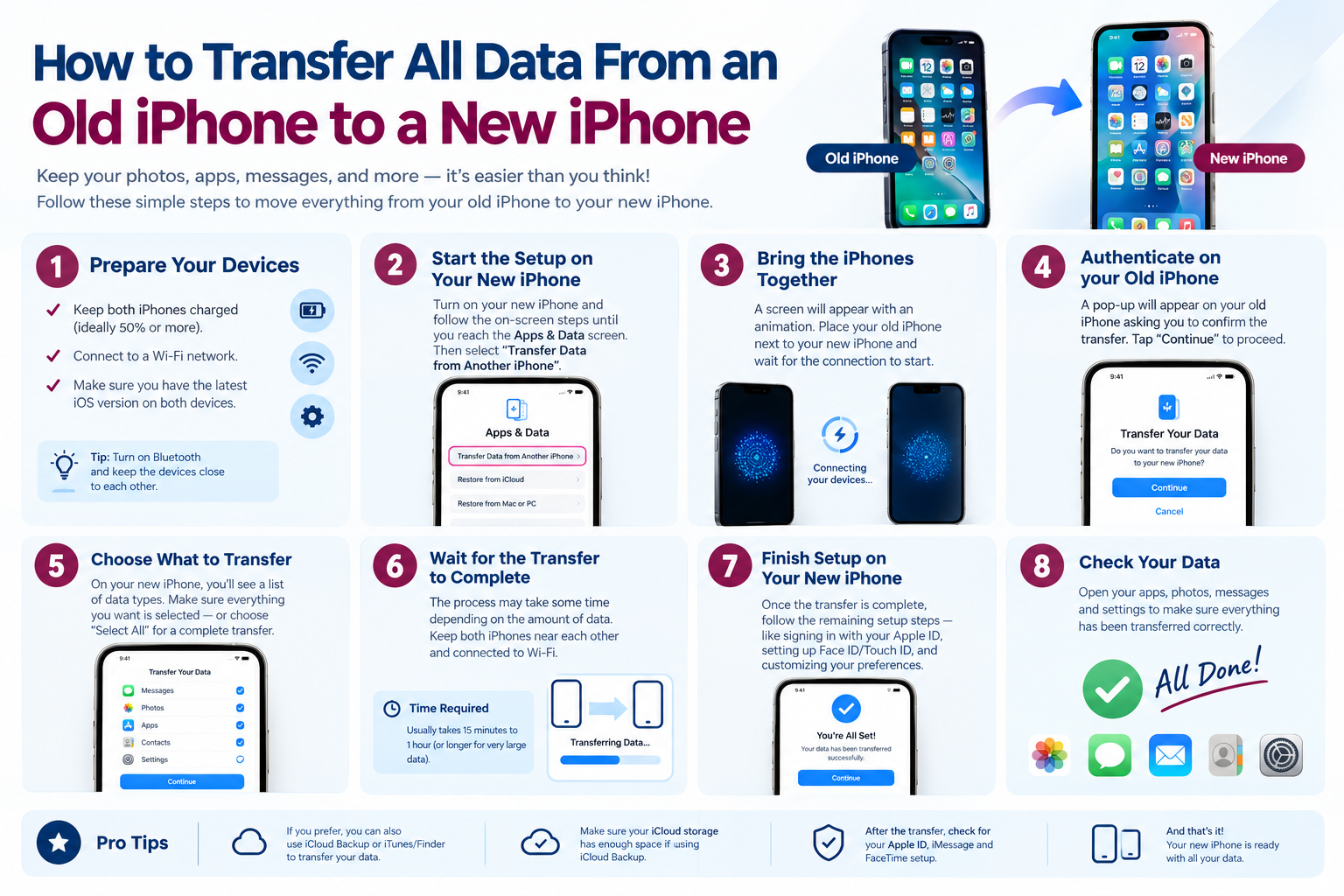
Apple’s Quick Start feature is the easiest official way to transfer your information directly from one iPhone to another.
Turn on your new iPhone and follow the initial setup instructions.
When you reach the Quick Start screen, place the new iPhone next to your old iPhone.
Your old iPhone should recognize the new device automatically.
A prompt should appear on your old iPhone asking whether you want to use your Apple Account to set up the new iPhone.
Tap Continue.
The new iPhone will then display an animation. This animation is used to securely pair the two devices.
Take your old iPhone and hold its camera over the animation displayed on the new iPhone.
Follow the instructions shown on the screen.
Once the devices are paired, you may be asked to enter the passcode that you use to unlock your old iPhone.
Enter the passcode on your new iPhone when prompted.
During setup, you’ll see options for transferring your information.
Select Transfer from iPhone to move your data directly from the old device to the new one.
You may also need to review and accept Apple’s terms and conditions.
Continue following the instructions displayed on the new iPhone.
Once the transfer starts, the most important thing is to leave both devices alone.
Keep the iPhones close together and connected to power if possible.
Do not turn either device off or unnecessarily move them apart.
The transfer time depends largely on how much data is stored on your old iPhone.
| Amount of Data | Approximate Time |
|---|---|
| Small amount of data | A few minutes |
| Medium amount of data | 15–60 minutes |
| Large amount of data | 1 hour or longer |
These are only general estimates. Your actual transfer time can vary depending on your devices, connection, and the amount of content being transferred.
Quick Start can transfer a large portion of the information stored on your old iPhone.
This can include:
However, not every service works exactly the same way after a transfer.
Some apps may require you to sign in again. Certain financial, authentication, or security-related apps may also require additional verification.
For this reason, don’t immediately erase your old iPhone until you’ve confirmed that everything important is available on your new device.
What if you already traded in, lost, or erased your old iPhone?
If you created an iCloud Backup before getting rid of the old device, you may be able to restore your information from that backup.
During setup on your new iPhone, choose Restore from iCloud Backup.
Sign in with your Apple Account and select the most recent backup.
Your new iPhone will then restore the available information from your backup.
The time required depends on the backup size and your internet connection.
Even if you plan to use Quick Start, creating a recent iCloud Backup before switching phones provides an additional safety net.
If something goes wrong with the direct transfer, you have another way to restore your information.
If your old phone is an Android device, you can’t use Quick Start in the same way as an iPhone-to-iPhone transfer.
Instead, Apple provides the Move to iOS app.
The basic process is:
The types of content available for transfer can vary depending on your devices and software versions.
Both methods can help you set up a new iPhone, but they work differently.
| Feature | Quick Start | iCloud Backup |
|---|---|---|
| Old iPhone needed | Yes | No, if backup exists |
| Computer required | No | No |
| Direct device-to-device transfer | Yes | No |
| Requires an existing backup | No | Yes |
| Useful after trading in old phone | No | Yes |
| Setup process | Simple | Simple |
If you still have your old iPhone, direct transfer with Quick Start is a convenient option. If you no longer have the old device but have a recent iCloud Backup, restoring from iCloud is the alternative.
Before erasing or trading in your old iPhone, take a few precautions.
Even after the transfer appears to be complete, check your new iPhone carefully.
Open your Photos, Messages, Contacts, and important apps to make sure everything you need is available.
If possible, keep your old iPhone for a few days after setting up the new one.
This gives you time to discover anything that may need to be transferred, reconfigured, or signed in again.
You may need your Apple Account password during setup. Some apps and services may also ask you to authenticate again.
Having your credentials available can make the transition much smoother.
Transferring your data to a new iPhone doesn’t have to be complicated. Apple’s Quick Start feature provides a straightforward way to move much of your information directly from your old iPhone to your new device.
Before starting, charge both phones, update your old iPhone, connect to Wi-Fi, and make sure Bluetooth is enabled. During the transfer, keep both devices close together and avoid interrupting the process.
If you no longer have your old iPhone, an existing iCloud Backup can provide another way to restore your information. And if you’re moving from Android, Apple’s Move to iOS app can help you transfer compatible content.
Most importantly, don’t erase your old iPhone until you’ve checked your new device and confirmed that your important data is safely available.
Quick Start can transfer a large amount of your data and settings, but certain apps and security-related services may require additional sign-in or setup.
No. Quick Start allows you to transfer data directly between iPhones without a computer.
There is no fixed time. A small transfer can take only a few minutes, while a large transfer may take an hour or longer.





Leave a Comment