
Did You Know?
Save time. Work smarter
Save time. Work smarter






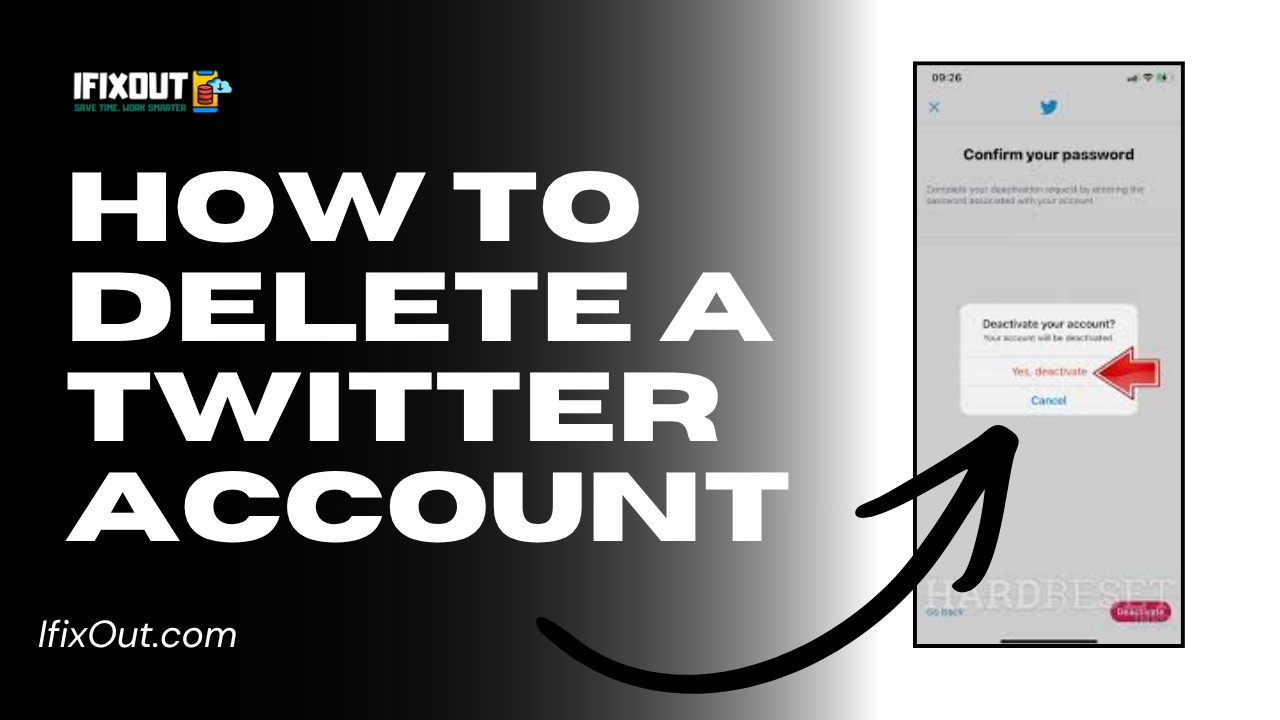
I still remember the moment I decided I needed a break from social media. Scrolling endlessly, checking notifications, and getting distracted—it all started to feel overwhelming. That’s when I searched for how to delete Twitter account, thinking it would be a quick one-click process.
But I quickly realized it’s not that simple. There’s a proper process, a waiting period, and a few important things that most guides don’t clearly explain. In this article, I’ll walk you through how to delete Twitter account step by step, along with my personal experience, mistakes I almost made, and practical tips so you can do it smoothly.
Quick Answer:
If you’re in a hurry, here’s the short version of how to delete Twitter account:
- Log into your Twitter account
- Go to Settings and Privacy
- Click on “Your Account”
- Select “Deactivate your account”
- Enter your password and confirm
Your account gets deactivated instantly and permanently deleted after 30 days if you don’t log back in.
Here’s exactly how I followed the process of how to delete Twitter account:
I logged into my account from my laptop. You can also do this on mobile, but I preferred desktop because it felt easier to navigate.
I clicked on my profile icon and went to “Settings and Privacy.” This is where all the important options are located.
Inside settings, I clicked on “Your Account.” It took me a moment to find it, but once I did, the option “Deactivate your account” was clearly visible.
Before proceeding, Twitter showed a warning explaining what happens after deactivation. I highly recommend reading this carefully—it helped me avoid mistakes.
Finally, I entered my password and confirmed. Just like that, my account was deactivated.
This completed the process of how to delete a Twitter account, but I knew the final deletion would only happen after 30 days.
I also tried the mobile method later, just to check how it works.
Steps are simple:
Honestly, it felt even faster on mobile. If you’re someone who uses Twitter mostly on your phone, this is the easiest way to follow how to delete Twitter account.
For me, the decision wasn’t sudden. I had been thinking about it for weeks. I noticed I was spending more than 2–3 hours daily just scrolling. According to recent studies, the average user spends over 2 hours per day on social media, and I was definitely above that.
What pushed me finally was the constant distraction. Every notification pulled me back in. I realized I needed control over my time and attention. That’s when I seriously looked into how to delete Twitter account.
At first, I thought uninstalling the app would be enough—but it wasn’t. My account was still active, my data was still there, and I could easily log back in. That’s when I understood the importance of properly deleting the account.
Before going ahead with how to delete Twitter account, I wanted to understand what actually happens.
Here’s what I learned:
One thing that surprised me was that my tweets still showed up on Google for a few days even after deactivation. This is normal because search engines take time to update.
Learning how to delete Twitter account was simpler than I expected—but doing it the right way made all the difference. The 30-day waiting period is something you must keep in mind, and avoiding small mistakes is crucial.
For me, deleting Twitter was a positive step. It helped me regain focus and reduce distractions. If you’re considering it, take your time, follow the steps carefully, and make sure you’re fully ready before confirming.
👉 If you’ve been thinking about it, try it yourself—start with deactivation and see how it feels. You can always come back within 30 days if needed.




Leave a Comment