
Did You Know?
Save time. Work smarter
Save time. Work smarter






Are you searching for a way to setup Windows 11 without Microsoft account?
Earlier versions of Windows can be set up without any account necessity, but Windows 11 prompts you time and again for the Microsoft account sign-in.
Using a Microsoft account is the default way to set up Windows, but many users want to skip it for multiple reasons. This article will help you with some effective workarounds to bypass Windows 11 Microsoft account.
Signing up with Windows accounts facilitates a good user experience as it provides content sync across the devices. However, several users want to access Windows through a local account without setting up a Microsoft account.
For those users, we have come up with five tried and tested methods to set up Windows 11 without Microsoft account:
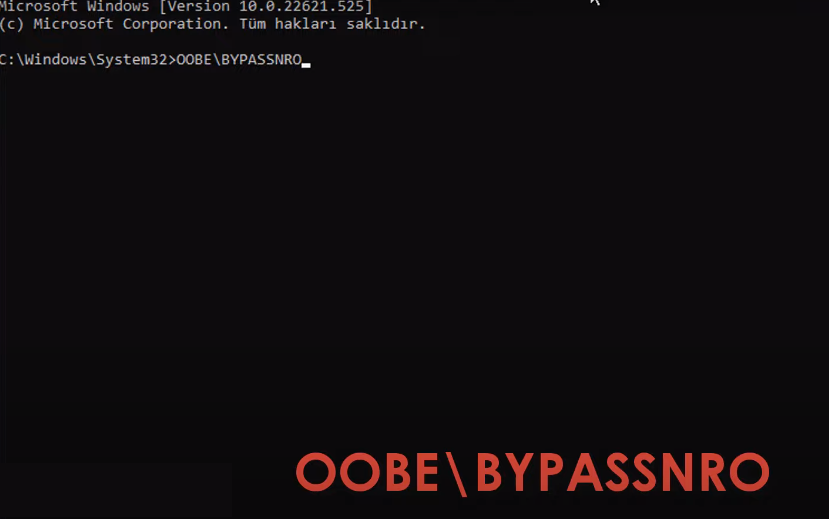
To set up Windows 11 without Microsoft account, you can use the registry key OOBE (Out Of The Box Experience). When you are in the setup process for Windows and are prompted to add a Microsoft account, you have to follow the steps below:
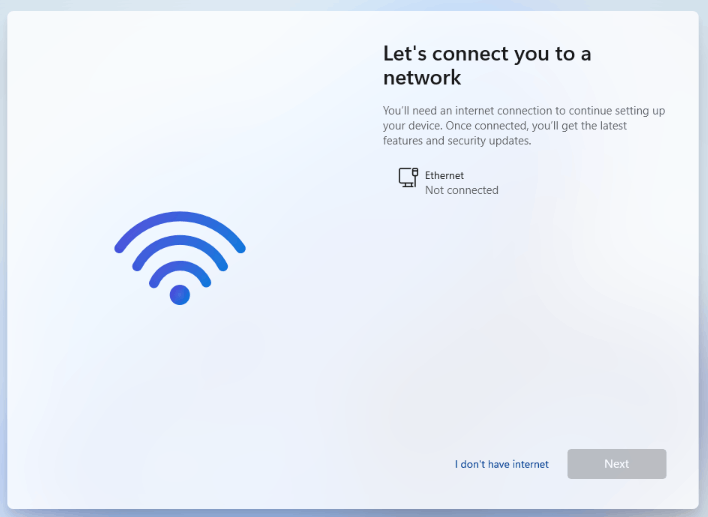
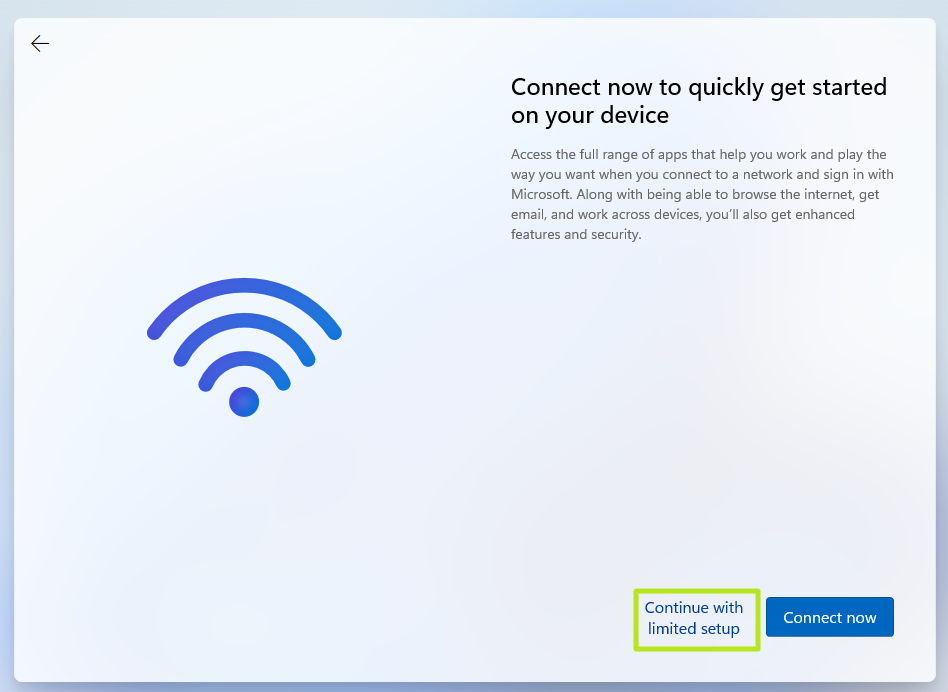
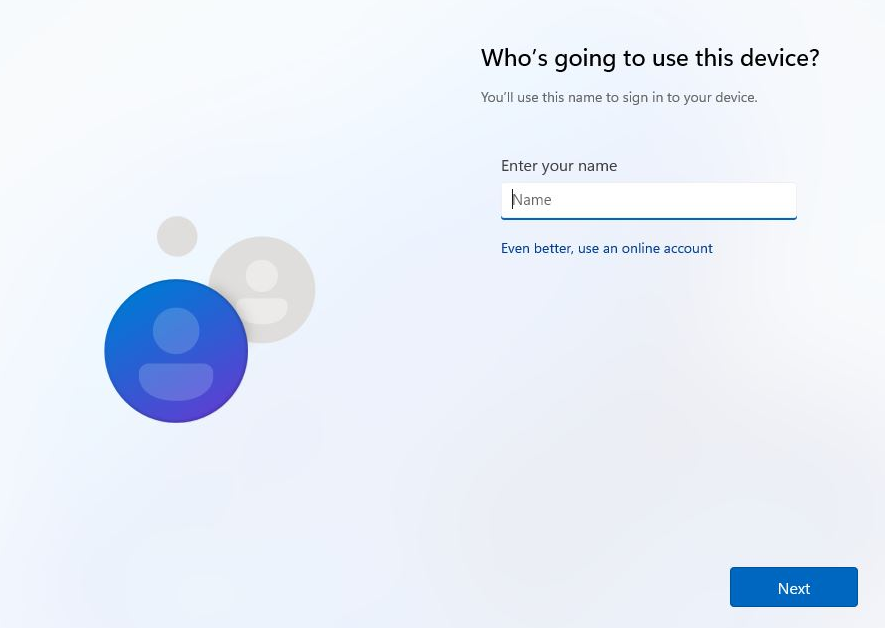
We sometimes enter random credentials at login for various things. Deliberately input the wrong or random credentials in the username and password section to bypass the Microsoft setup.
The following steps will guide you setup Windows 11 without Microsoft account via random information:
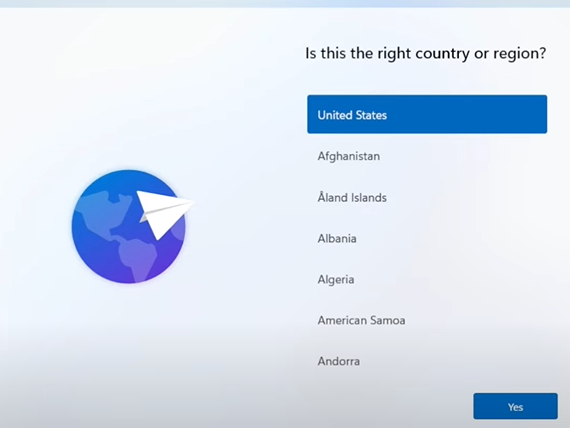
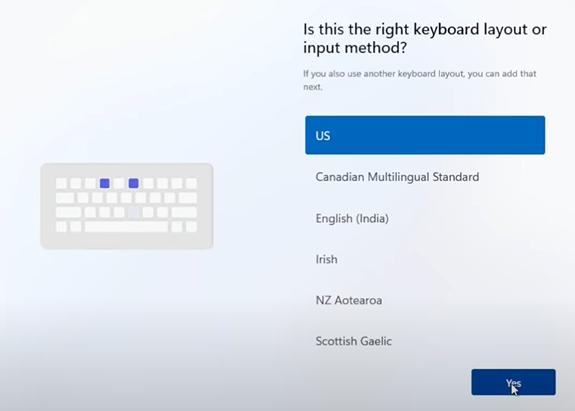
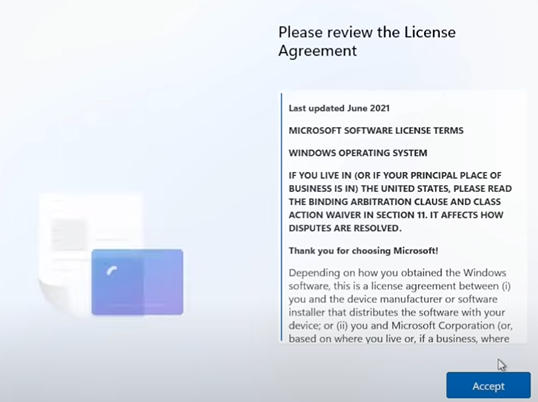
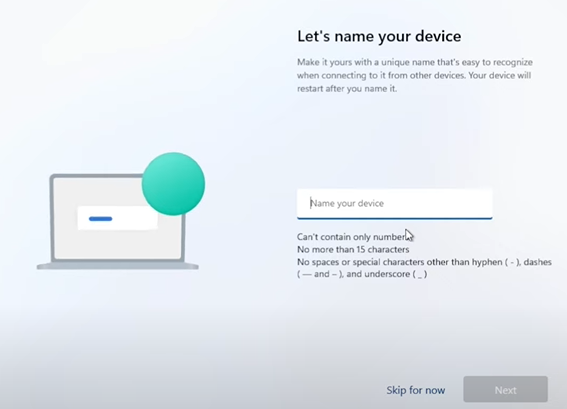
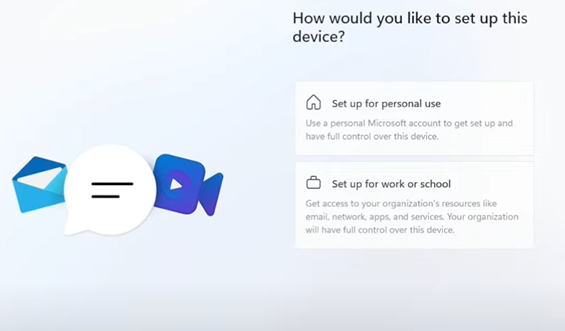
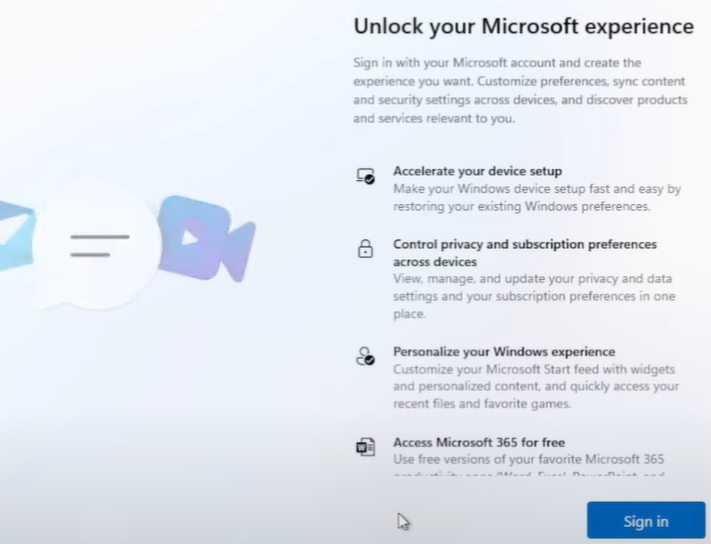
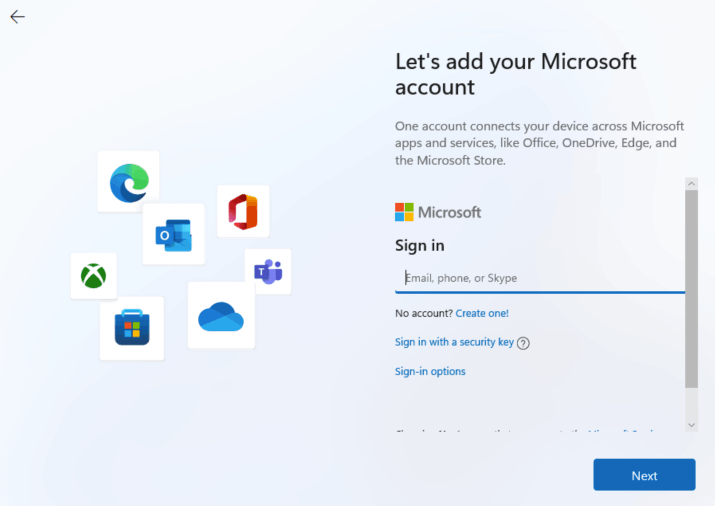
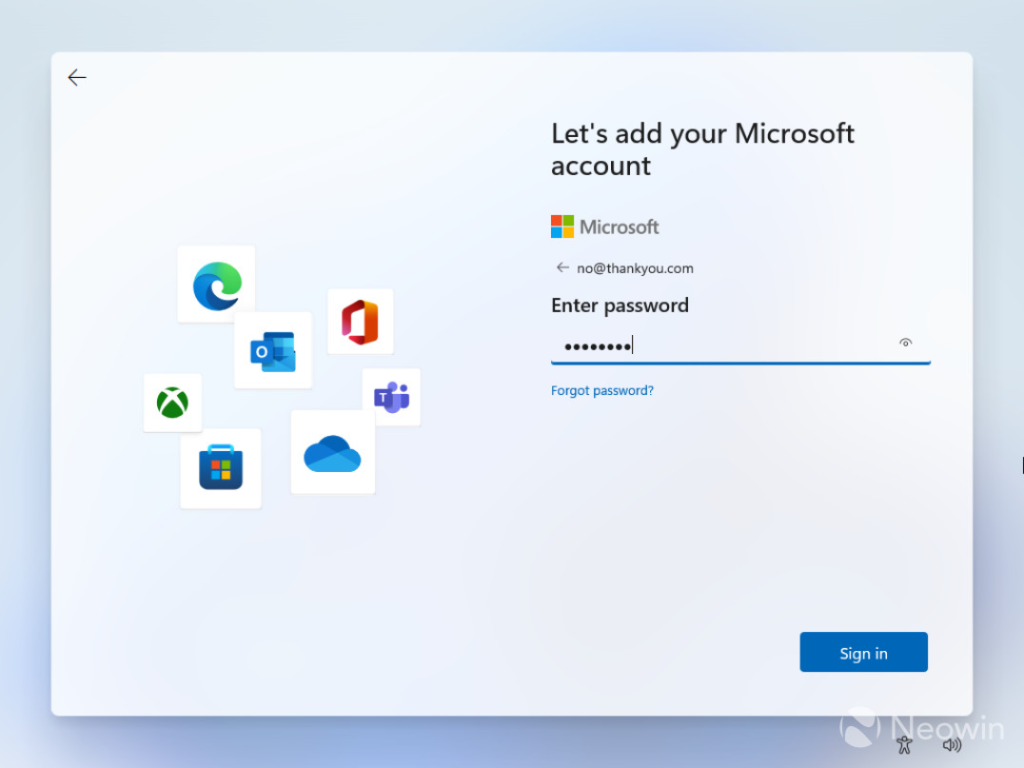
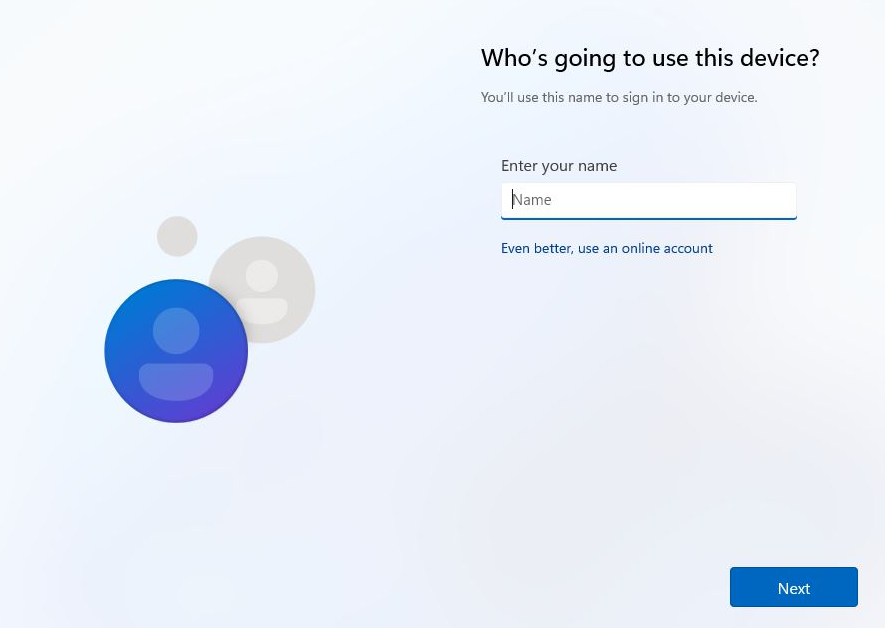
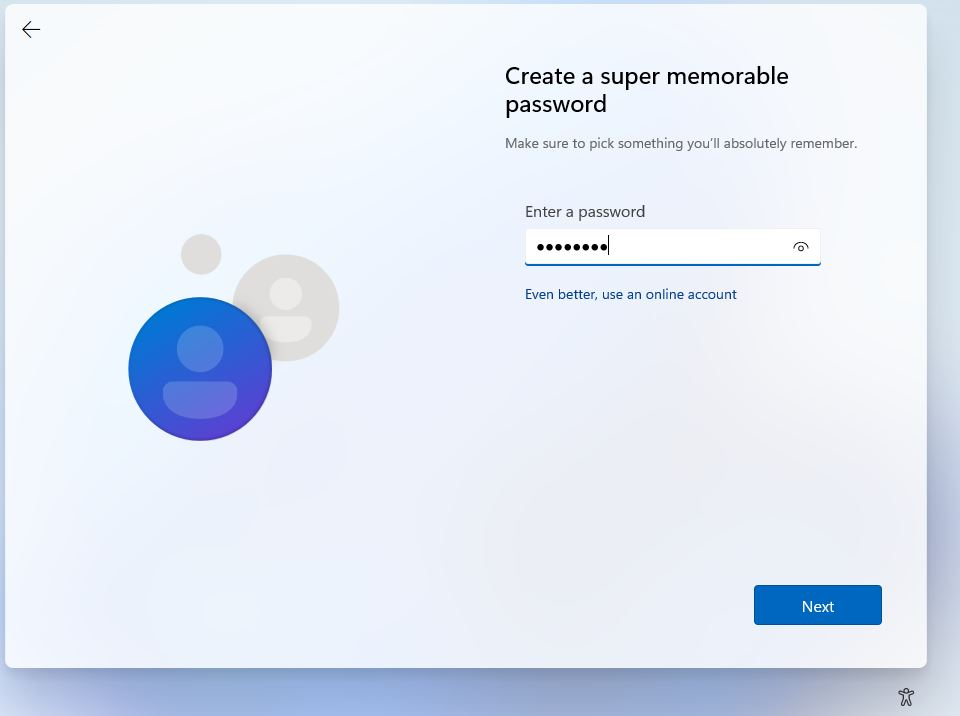
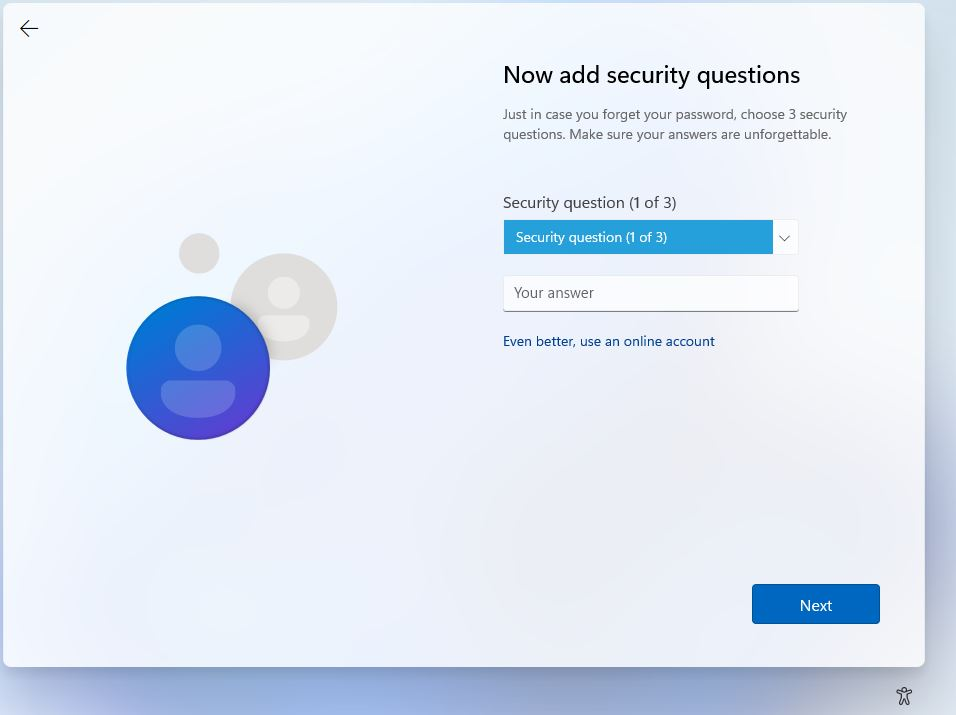
That’s it; you have successfully bypassed the Windows 11 Microsoft account. Now, sign in using the same local account on your laptop and the password created to use Windows 11 PC.
A bootable flash drive is the best option for installing Windows 11 without the need to bypass a Microsoft account. For that, keep the internet disconnected while installing Windows. Here, you need to ensure that the USB you are using has 8 GB of storage.
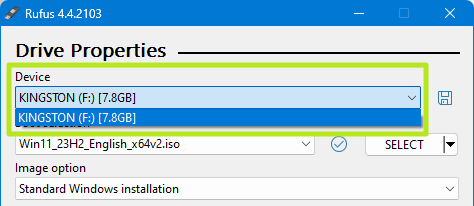
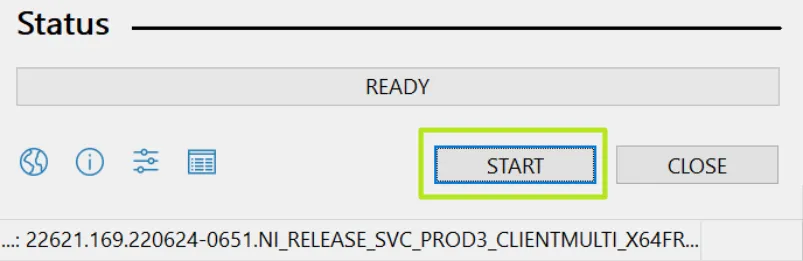
Wait for a while until Rufus copies files to a USB drive. After the files are copied, use this bootable flash drive to do a clean installation of Windows 11. Remember to unplug the internet from the PC before proceeding with the bootable flash drive.
When you are prompted to log in with a Microsoft account and you want to skip it, choose the sign-in option. This way, you will be able to proceed without your Microsoft credentials. Check the step below for the precise method:
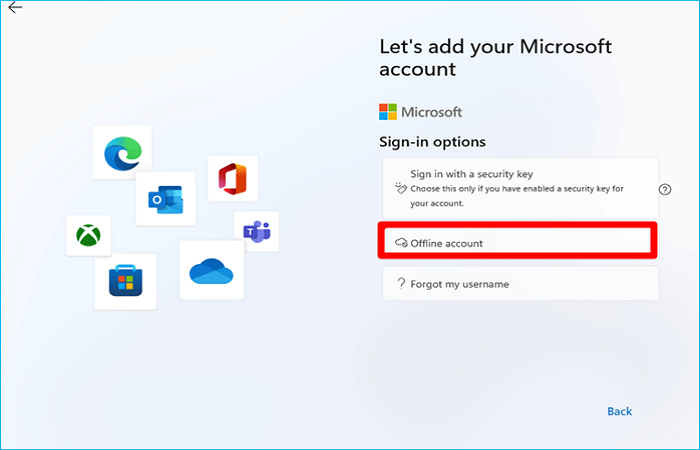
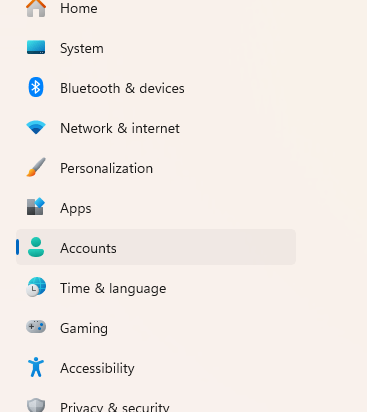
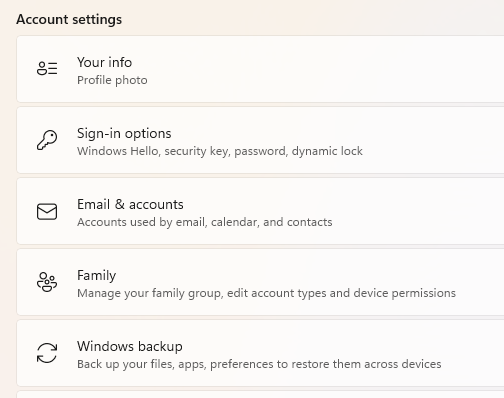
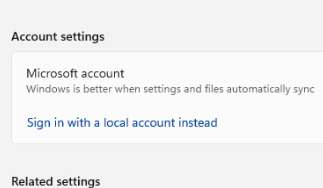
Instead of directly going for a local account setup of Windows 11, start with a normal setup with a Microsoft account and then convert the account to a local account.
Follow the steps further to convert your Microsoft account into a local account:


Before using any of the methods, it is advised to take a backup of your data and then proceed with the process to setup Windows 11 without Microsoft account.
Setting up a window without a Microsoft account is beneficial to users who are very particular about their privacy, share their laptop with kids, and want to donate it to charity or resell it. If you are one of those, use the aforementioned methods to set up Windows 11 without Microsoft account.
Yes, there are some workarounds to do so. You can disconnect the internet, use the command prompt OOBE (Out Of The Box Experience), or bypass the Microsoft account using random credentials.
If you remove your Microsoft account from the laptop, you will end up losing all your data on that particular account. Therefore, we suggest you opt to have a backup.
There are many advantages that you get if you sign up with a Microsoft account. By setting up a Microsoft account, you can keep track of the overall safety of your PC and make changes in settings.




Leave a Comment