
Did You Know?
Save time. Work smarter
Save time. Work smarter






Are you struggling with an overheating CPU? It is a common issue for users. But panic won’t work; instead, you need to know – how to check CPU temp and maintain it.
Hopping on various intense programs simultaneously leads to heavy loads, hence resulting in overheating.
Sail through the article to learn how you can check your CPU’s temperature on a PC. Along with it, we have mentioned reasons and solutions for overheating to control the Computer’s Processing Unit’s temperature range.
In case you are wondering how to check CPU temp Windows 10, there are no specific options available yet. However, you can follow the detailed steps below; try them to check your CPU temp.
Core temp app is a popular app when it comes to CPU temp. But be cautious about bloatware before you hit download. Let’s see how to check CPU temp in Windows 10 and other versions using the Core Temp app:
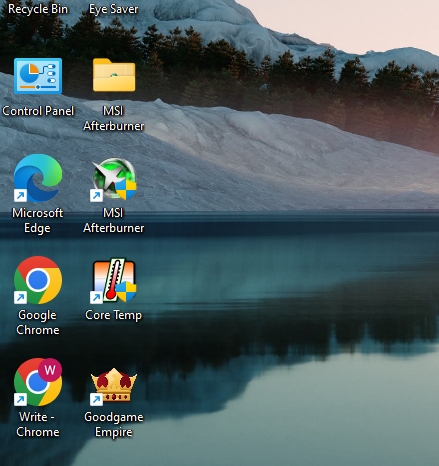

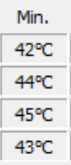
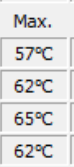
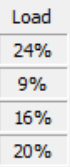
We have also found some other apps that work the same way. Here are the recommended apps that you can use to check your CPU temperature:
Navigate to their sites and download them through the guided on-screen instructions. These apps and sites are the best and will help you maintain the life of your hardware. Moreover, you can also use Window’s built-in feature to check CPU temp, read on to know about it.
Bios is the built-in software on Windows PCs to check the CPU temperature. Let’s start with how to check CPU temp in Windows 10 or other versions without any app.
Limitation of BIOS Method:
The following are the limitations of the BIOS method:
Many users search for how to check CPU temp in Windows 10 or 11, but in vain. Now that we have suggested the methods to check the PC’s processing unit, hopefully, it won’t be a problem anymore.
Only checking the CPU’s temp won’t do any good to you. It is just the first step, and the next is to monitor it for fluctuations.
You can carry on your work while keeping an eye on the different core temperatures. The instructions below will help you monitor your CPU temperature range:
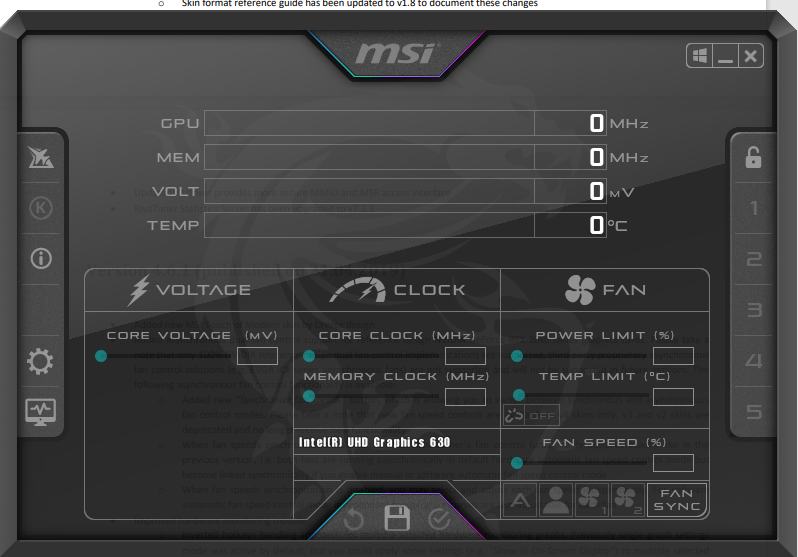
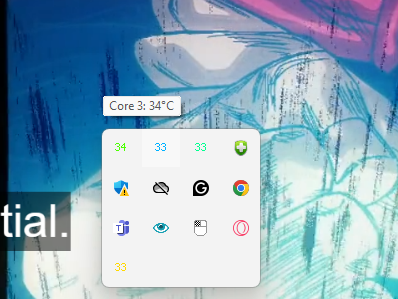
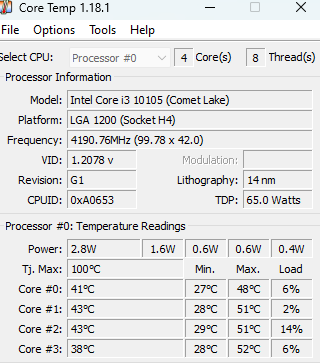

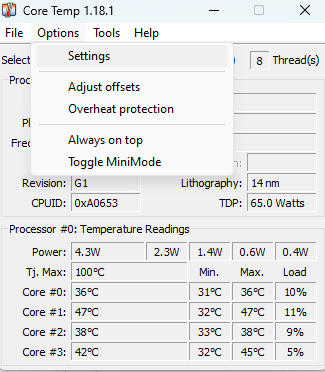


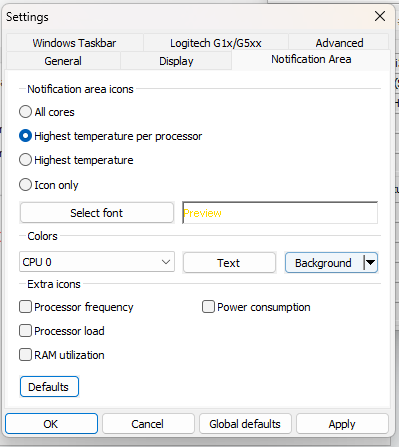


10. Tap the arrow in the taskbar to see the temperature.

Now you will be able to focus on the core with high heating and take actions as required.
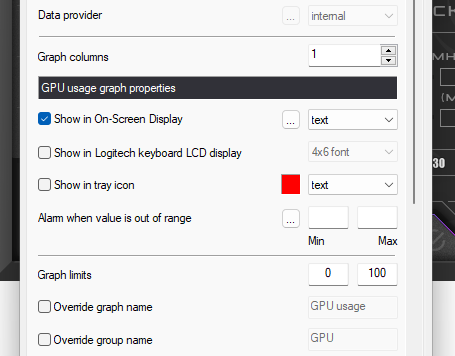
It is troublesome to go back and forth to the taskbar, to check the core temperature. But you can’t neglect it as well, so what to do? Do the following to monitor the PC, and CPU heat levels while gaming:
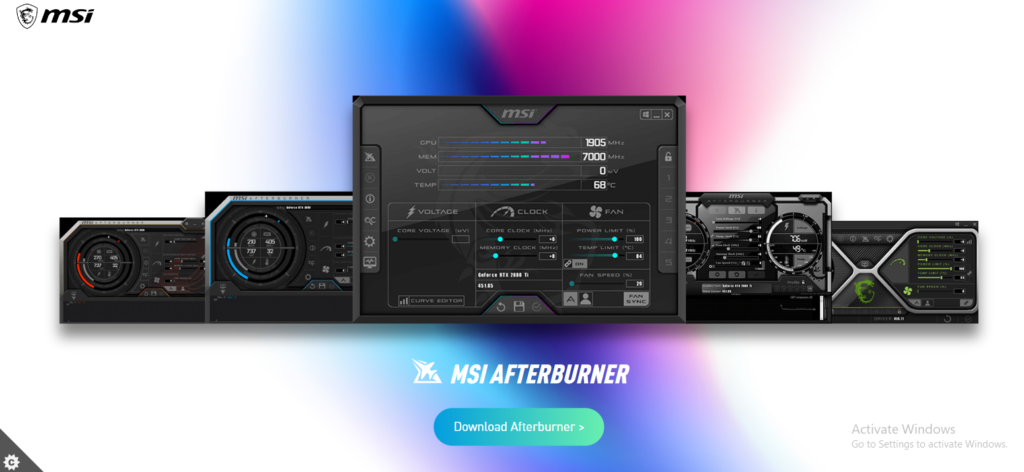

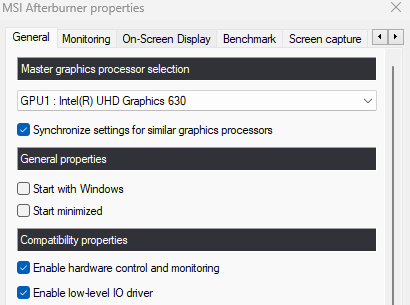

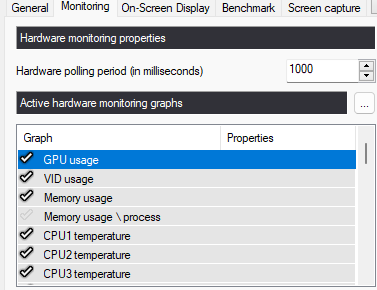
9. Now launch any game and start playing, you will observe the CPU temperature on the corner of the screen.

Now, there will be no interruption in your gaming to check CPU temp. This way, you can have real-time temperature updates of the CPU cores on the same screen.
So far, we have learned to check and monitor CPU temp, but it’s time to take action to maintain it to a normal temperature.
You need to have prior knowledge of the normal PC temperature range to maintain the heat emission. Temperature ranging between 40 and 60° C (104 -149° F) is a normal PC temperature. Refer to the table for different temperature range
While gaming, CPU temperature can reach 70–80 degrees since it’s an intense task. If the heat emission reaches beyond this range, you need to think of ways to reduce it to a good CPU temp.
Your best option is to take precautions for overheating before it takes a toll on the system’s hardware. Furthermore, to prevent instances of overheating, you need to know why it happens.
Various reasons can affect your PC’s temperature and lead to overheating and lag. Check the pointers below to know the common reasons that give a spike to the CPU temp:
Sometimes it is inevitable to stop CPU temperature from spiking. But, here are some tried and tested tips, you can use to take down your CPU temp:
Other than the above-suggested methods, make sure that you also pay attention to your environment. A heated environment will add to the trouble and won’t allow the CPU temp to decrease.
To maintain your PC temperature and save it from overheating, you must know how to check CPU temp. Be smart and opt for a dedicated app to monitor and maintain the temperature before overheating causes any permanent damage to your PC.
People having thin laptops, ensure proper ventilation to prevent instances of temperature rise!
Temperature anywhere between 40 and 60 degrees is considered normal and while gaming the 70 to 80 degrees range will also be considered normal.
To check your processor information, move to the control panel >> system and security >> system.
High PC temperature is impacted by several reasons. The most common reason is dust and dirt particles accumulated in the CPU.
You can install some PC apps like Avast Cleanup and CCleaner to monitor heating. These will help you maintain the CPU temperature even when you are multitasking.




Leave a Comment